Use Flagsmith's Database
Experimentation is in beta.
On self-hosted Flagsmith, you can store experiment events in the PostgreSQL database Flagsmith already runs on. There is nothing extra to deploy: the SDKs send events to your Flagsmith API, which writes them to its own database, and experiment results are computed there. Each environment has one warehouse connection.
Before you start
- Self-hosted Flagsmith whose database is PostgreSQL. It isn't available on Flagsmith Cloud, and enabling it fails on MySQL or Oracle.
EXPERIMENTATION_ENABLED=trueon the Flagsmith API; the Warehouse tab doesn't appear without it. See environment variables.- SDK versions that support experimentation; see Run an Experiment.
You don't need the event ingestion service, Kafka or warehouse delivery from the Helm chart.
1. Enable it
- Go to Environment Settings › Warehouse.
- Select Flagsmith database and click Enable, then confirm.
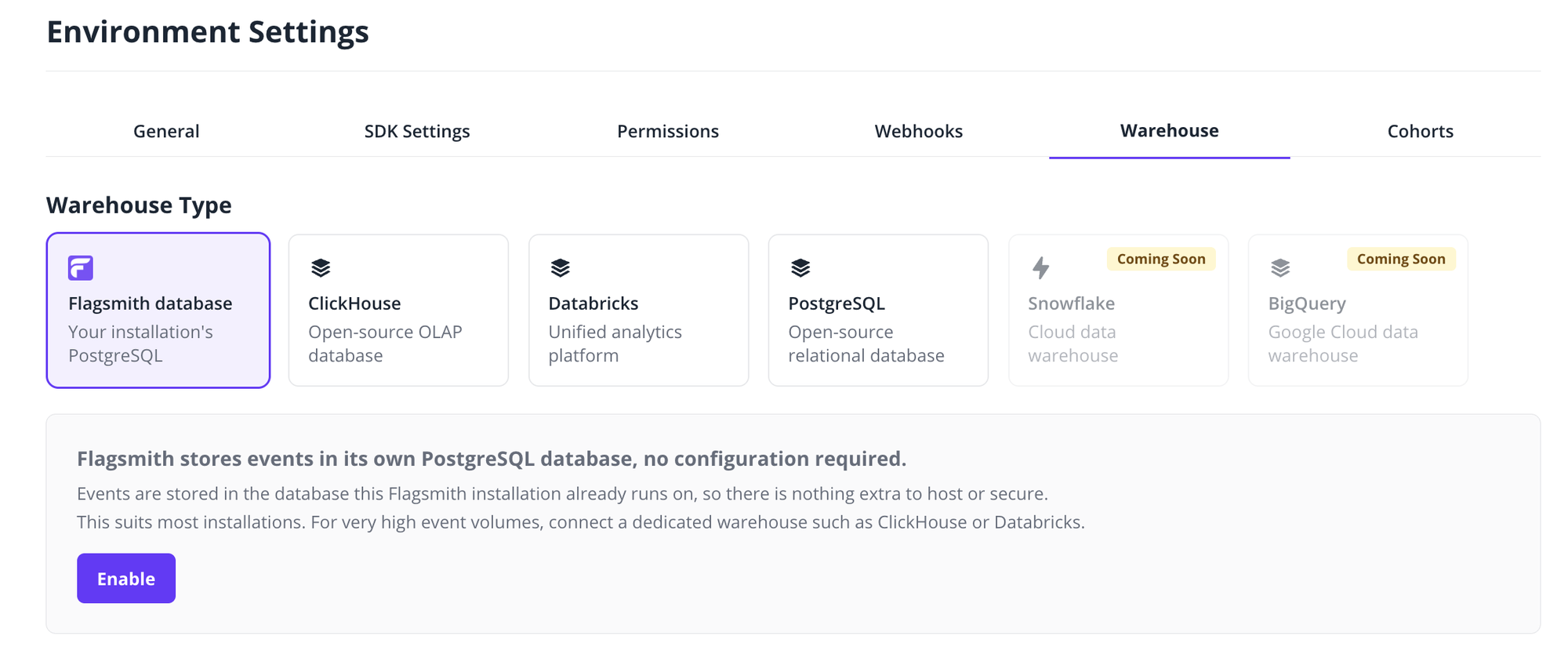
The connection is named Flagsmith database - environment name. When you enable it, Flagsmith checks that it can read the events table and shows Connected straight away. If the check fails, the connection shows Errored with the reason; fix it and click Test connection on the card, or contact support if it persists.
The connection has no settings to edit. To stop storing events, delete the connection; events already stored stay in the table.
2. Point your SDKs at your Flagsmith API
By default, the SDKs send events to Flagsmith Cloud. Set each SDK's events URL to your Flagsmith API URL, ending in
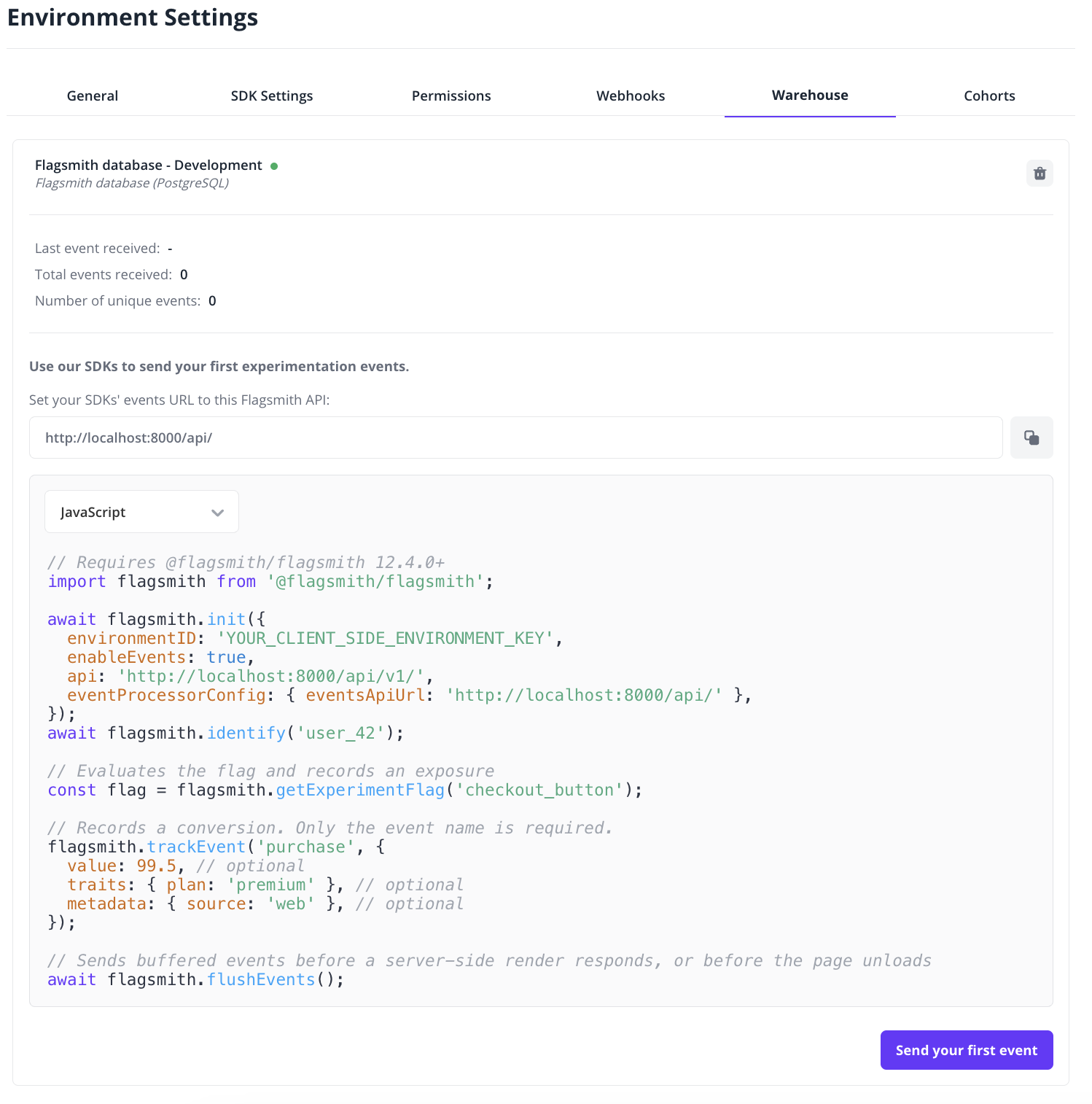
/api/, for example https://flagsmith.example.com/api/. Don't add v1/events; the SDKs append it. The connection
card shows this URL with a copy button.
- JavaScript
- React
- Python
- Java
- Node.js
- Go
- Flutter
await flagsmith.init({
    environmentID: 'YOUR_CLIENT_SIDE_ENVIRONMENT_KEY',
    enableEvents: true,
    api: 'https://flagsmith.example.com/api/v1/',
    eventProcessorConfig: { eventsApiUrl: 'https://flagsmith.example.com/api/' },
});
<FlagsmithProvider
    flagsmith={flagsmith}
    options={{
        environmentID: 'YOUR_CLIENT_SIDE_ENVIRONMENT_KEY',
        enableEvents: true,
        api: 'https://flagsmith.example.com/api/v1/',
        eventProcessorConfig: { eventsApiUrl: 'https://flagsmith.example.com/api/' },
    }}
>
flagsmith = Flagsmith(
    environment_key="YOUR_ENVIRONMENT_KEY",
    enable_events=True,
    api_url="https://flagsmith.example.com/api/v1/",
    event_processor_config=EventProcessorConfig(
        events_api_url="https://flagsmith.example.com/api/",
    ),
)
FlagsmithClient flagsmith = FlagsmithClient
    .newBuilder()
    .setApiKey("YOUR_ENVIRONMENT_KEY")
    .withConfiguration(FlagsmithConfig.newBuilder()
        .withEnableEvents(true)
        .baseUri("https://flagsmith.example.com/api/v1/")
        .eventsUri("https://flagsmith.example.com/api/")
        .build())
    .build();
const flagsmith = new Flagsmith({
    environmentKey: 'YOUR_ENVIRONMENT_KEY',
    enableEvents: true,
    apiUrl: 'https://flagsmith.example.com/api/v1/',
    eventProcessorConfig: { eventsApiUrl: 'https://flagsmith.example.com/api/' },
});
client := flagsmith.NewClient("YOUR_ENVIRONMENT_KEY",
    flagsmith.WithEvents(eventsCtx),
    flagsmith.WithBaseURL("https://flagsmith.example.com/api/v1/"),
    flagsmith.WithEventsBaseURL("https://flagsmith.example.com/api/"),
)
final flagsmith = await FlagsmithClient.init(
  apiKey: 'YOUR_CLIENT_SIDE_ENVIRONMENT_KEY',
  config: const FlagsmithConfig(
    enableEvents: true,
    baseURI: 'https://flagsmith.example.com/api/v1/',
    eventsURI: 'https://flagsmith.example.com/api/',
  ),
);
To verify events arrive, click Send your first event on the connection card; the button disappears once the first event arrives. For the rest of the setup, such as recording exposures and conversions, see Run an Experiment.
Limitations
- Events share your application database, so they add to its size, backups and load.
- Flagsmith doesn't delete old events. Monitor the database's growth.
- For high event volumes, connect a dedicated warehouse such as ClickHouse or Databricks.